5. Ingress Deep-Dive
In this exercise you will learn:
- How different operators can be used to manage infrastrucutre (a look behind the scenes)
- That you can use multiple operators (instances) for different purposes
- An additional deployment of Treafik as Ingress Controller by Helm
- A transition of an Ingress Resource to a Gateway-API resource (HttpRoute)
- The usage of a Middleware (Basic Auth)
- How to use json-path and jq in conjunction with kubectl
- A practical example of kubectl port-forward
Trainer Instructions
Was tested with Traefik Chart 3.5.0. Gateway API support is still in development! Watch out for changes if a newer version is used. Check that external DNS was deployed with support HttpRoutes!
0. Explore the deployed Infrastructure (reverse engineering)
Ingress Controller
Let’s figure out some details about our already ingress controller. Please try to get answers to the following questions!
Question 1
What is the name of our ingress controller and is it configured as the default Ingress Controller?
Hint
Maybe the IngressClass resource could help you.
Solution
We can get the IngressClasses by kubectl get IngressClasses and more information by kubectl describe ingressclass <ingressclassname>.
Name:         nginx
Labels:       app.kubernetes.io/component=controller
              app.kubernetes.io/instance=nginx-ingress-controller
              app.kubernetes.io/managed-by=Helm
              app.kubernetes.io/name=nginx-ingress-controller
              app.kubernetes.io/version=1.13.0
              helm.sh/chart=nginx-ingress-controller-12.0.2
Annotations:  ingressclass.kubernetes.io/is-default-class: true
              meta.helm.sh/release-name: nginx-ingress-controller
              meta.helm.sh/release-namespace: ingress
Controller:   k8s.io/ingress-nginx
Events:       <none>
ingressclass.kubernetes.io/is-default-class: true we know that nginx is the default ingress controller.
Question 2
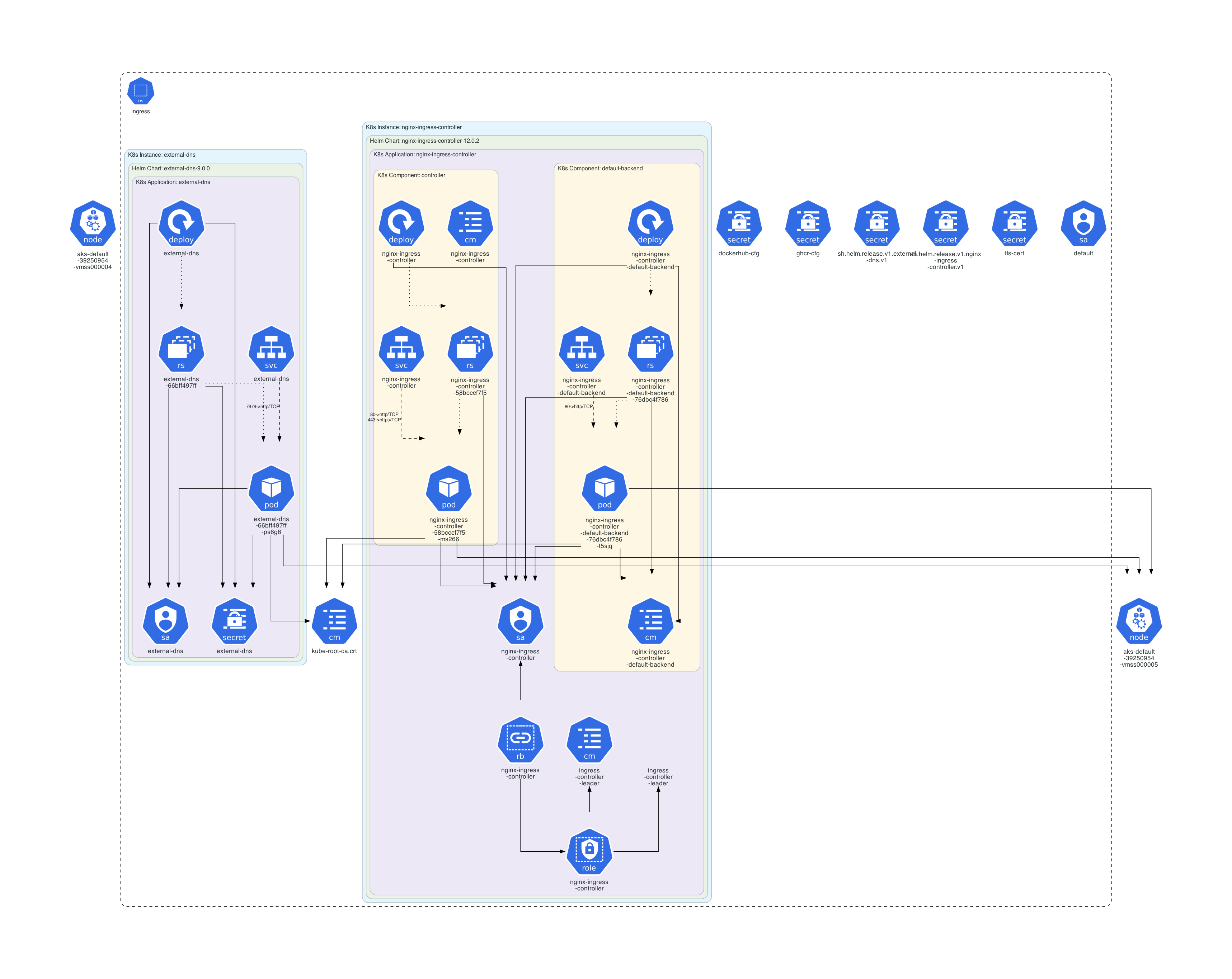
Where is the controller deployed? Which additional resources are used by the controller? What else can you figure out?
Hint
You may start to find the correct namespace and investigate all common known resource types in that namespace.
Solution
Let’s get the most common resources in the namespace ingress.
k get all,svc,cm,secrets,sa,roles,rolebindings -n ingress
We created a graphical overview of the situation with kube-diagrams.
Bonus question
Can you list all hostnames of the TLS certificate used by the ingress controller?
Hint 1
Lets take a look in the official documentation. Which parameter should be used to reference the secret? Can you find the secret?
Hint 2
You can use jq or the integrated json-path support to extract the data from the secret.
Hint 3
You may use openssl to inspect the certificate. openssl x509 is your friend.
Solution
Okay and here is the solution.
kubectl -n ingress get secret tls-cert -o jsonpath="{.data['tls\.crt']}" | base64 --decode | openssl x509 -text -noout | awk '/Subject Alternative Name/{getline; print}' | grep 'DNS'
kubectl get secret tls-cert -n ingressretrieves the secret named tls-cert in the namespace ingress.--output=jsonpath='{.data.tls\.crt}'extracts the base64 encoded content of tls.crt.- The output from this command (which is a long string of characters) is then piped to
base64 --decode, which decodes it back to its original form before displaying it in your terminal.
- Once you have the decoded certificate content, you can process it with openssl to extract detailed information
openssl x509 -in /dev/stdin -text -nooutopenssl x509is the command for processing X.509 certificates.- -in /dev/stdin tells OpenSSL to read the input from standard input, which in this case comes from the decoded certificate content piped from the previous step.
- -text instructs OpenSSL to output detailed information about the certificate, including extensions and SANs if present.
- -noout suppresses the default output of a certificate’s fingerprint or header/footer lines.
- To extract the SAN entries from the detailed information provided by OpenSSL, you can use
awk:awk '/Subject Alternative Name/{getline; print}'/Subject Alternative Name/is a pattern that matches lines containing “Subject Alternative Name”.- {getline; print} tells awk to read the next line after finding a match and then print it. This often contains SAN entries separated by newlines.
- Finally, you can filter these lines to display only those with ‘DNS’ entries using
grep DNS.
What about DNS?
The questions in this topic are hidden to avoid spoilering information for the first part.
Question
You may noticed the additional deployment of external-dns in the ingress namespace. This is an additional operator that manages our DNS entries in the cloud. So another part of our infrastructure is abstracted by Kubernetes resources in yaml 🚀. Figure out 1. What does this operator do? 2. How did we deploy it? 3. How can it be configured? 4. Which resources are supported?
Documentation Hint
The documentation is available at https://kubernetes-sigs.github.io/external-dns/latest/. The sources page may help you!
Solution
- It extracts hostname information from various Kubernetes resources (mainly services and ingress) and creates entries at configured DNS providers. In our case it’s Azure DNS.
As we have not used Azure RBAC to configure the cluster, you can read all necessary information to get the control over the DNS zone in the
external-dnssecret:k get -n ingress secret external-dns -o yaml -o jsonpath="{.data['azure\.json']}". That shows again how important the usage of RBAC is. - We used the bitnami helm chart.
You can see this easily by looking at any resource of the deployment (deployment, secret…)
metadata: annotations: meta.helm.sh/release-name: external-dns meta.helm.sh/release-namespace: ingress creationTimestamp: "2025-08-05T10:49:52Z" labels: app.kubernetes.io/instance: external-dns app.kubernetes.io/managed-by: Helm app.kubernetes.io/name: external-dns app.kubernetes.io/version: 0.18.0 helm.sh/chart: external-dns-9.0.0 - The easiest way is to take a look at the chart values and tutorials.
- We can see that many resources are supported, including
gateway-httproutesandtraefik-proxyresources. Also a CRD is available. Furthermore annotations can be used.
1. Deployment of the guestbook app and ingress
You have done this many times…You can use an exisitng guestbook deployment or create a new one.
In addition create an ingress resource to expose your app at guestbook.<clustername>.<workshopID>.k8s.workshop.thinkport.cloud
Ensure your app is running and exposed via a corresponding ingress. In the fundamentals section, we have learned how to expose our app using an NGINX controller and a ClusterIP. Use kubectl to verify that the resources are created and running.
If you need help rebuilding the setup, you can find the resources in:
~/exercise/k8s-admin-lab/kubernetes/Example-App
Our goal is to replace NGINX and Ingress with Traefik and Gateway-API.
You can use any namespace you want, we will guestbook-ingress in the following solutions.
Optional Task
You can try to check the status of the DNS entry by reading the logs of the external-dns deployment.
You should see something like:
time="2025-08-11T16:18:56Z" level=info msg="Updating A record named 'guestbook.chris.a1' to '4.207.111.50' for Azure DNS zone 'k8s.workshop.thinkport.cloud'."
time="2025-08-11T16:18:57Z" level=info msg="Updating TXT record named 'a-guestbook.chris.a1' to '\"heritage=external-dns,external-dns/owner=chris.a1.k8s.workshop.thinkport.cloud,external-dns/resource=ingress/guestbook-ingress/ingress-resource\"' for Azure DNS zone 'k8s.workshop.thinkport.cloud'."
2. Installing Traefik
Based on the previous Helm chapter, install Traefik using the official documentation:
🔗 Traefik Quick Start with Kubernetes.
We want to enable different options for Traefik:
- The support for the Gateway API (which is the successor of the Ingress API)
- The support for Ingress resources, but still having nginx as default controller
- The deployment of the Dashboard
Add the Helm repo
First, add the Helm repository https://traefik.github.io/charts to your Helm instance!
Note
helm repo add traefik https://traefik.github.io/charts
helm repo update
Namespace and TLS Secret
Now, we will create the namespace traefik-ingress and copy the exisiting tls secret from the ingress namespace to it.
Note
kubectl create namespace traefik-ingress
kubectl get secret tls-cert -n ingress -o json | jq '.metadata.namespace = "traefik-ingress"' | kubectl apply -f -
Deploy Traefik by using Helm
Install Traefik using the prepared values file. You can find examples here and here.
helm install traefik traefik/traefik -f ~/exercise/kubernetes/Networking/values.yaml --wait
#Enable the dashboard
ingressRoute:
  dashboard:
    enabled: true

#Enable all providers
providers:
  kubernetesGateway:
    enabled: true
  kubernetesCRD:
    enabled: true
  kubernetesIngress:
    enabled: true
ingressClass:
  enabled: true
  isDefaultClass: false
gateway:
  listeners:
    web:
      namespacePolicy:
        from: All
# Enable ssl on Gateway-API
    websecure:
      port: 8443
      protocol: HTTPS
      certificateRefs:
        [
          {
            kind: Secret,
            name: tls-cert,
            namespace: traefik-ingress
          }
        ]
      namespacePolicy:
        from: All
# Set our cert as default cert for traefik
tlsStore:
  default:
    defaultCertificate:
      secretName: tls-cert
#Expose Traefik as Load-Balancer
service:
  type: LoadBalancer
#Enable Access Log
logs:
  access:
    enabled: true
Check the deployed resources
Check the namespace
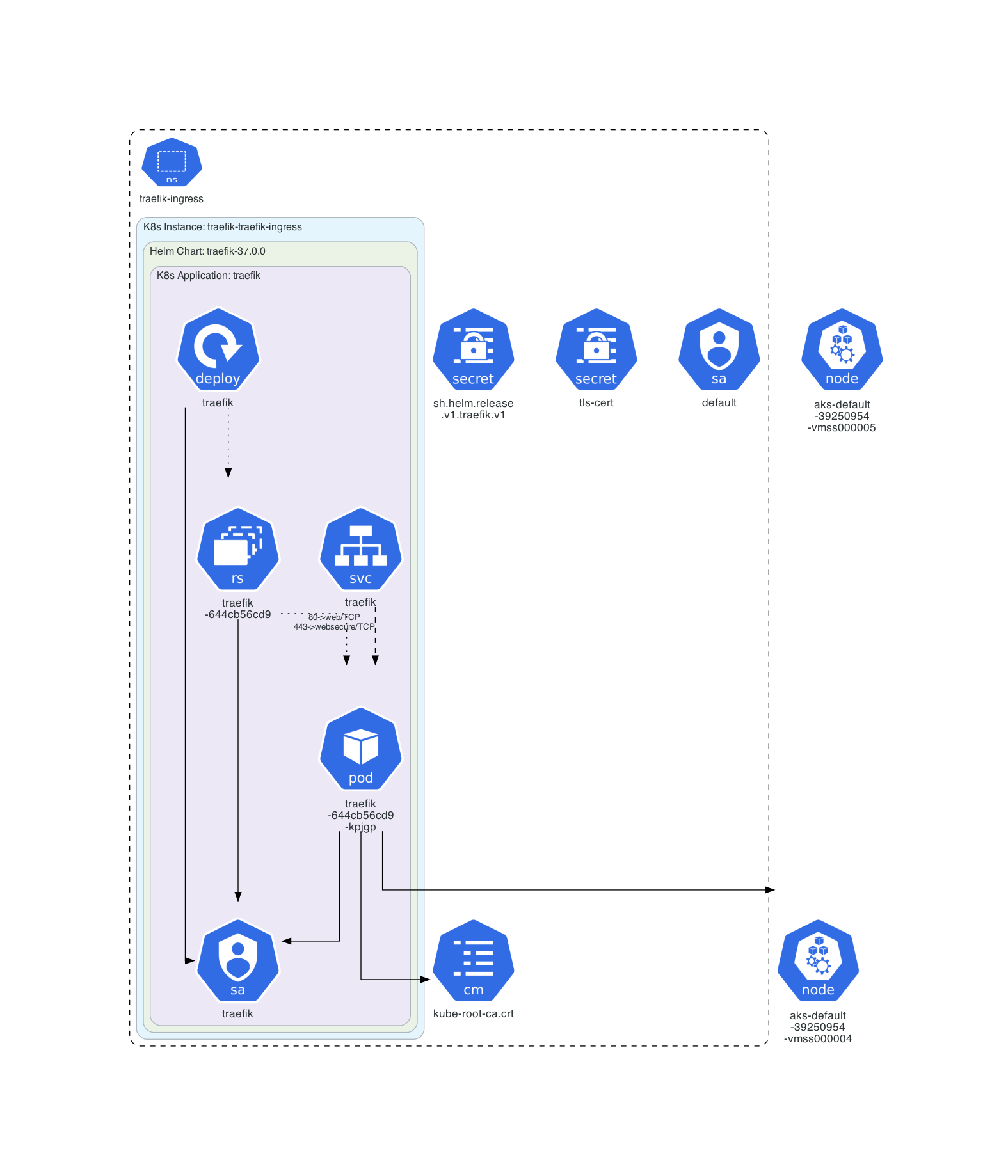
Let’s check the deployment. First take a look at the traefik-ingress namespace. Take a look on the traefik deployment spec!
Solution
Get the overview:
k get all,svc,cm,secrets,sa,roles,rolebindings -n traefik-ingress
NAME                           READY   STATUS    RESTARTS   AGE
pod/traefik-644cb56cd9-kpjgp   1/1     Running   0          25h

NAME              TYPE           CLUSTER-IP     EXTERNAL-IP    PORT(S)                      AGE
service/traefik   LoadBalancer   10.0.141.232   20.13.193.54   80:30243/TCP,443:30714/TCP   25h

NAME                      READY   UP-TO-DATE   AVAILABLE   AGE
deployment.apps/traefik   1/1     1            1           25h

NAME                                 DESIRED   CURRENT   READY   AGE
replicaset.apps/traefik-644cb56cd9   1         1         1       25h

NAME                         DATA   AGE
configmap/kube-root-ca.crt   1      26h

NAME                                   TYPE                 DATA   AGE
secret/sh.helm.release.v1.traefik.v1   helm.sh/release.v1   1      25h
secret/tls-cert                        kubernetes.io/tls    2      26h

NAME                     SECRETS   AGE
serviceaccount/default   0         26h
serviceaccount/traefik   0         25h
Details of the Traefik Deployment:
k get deploy -n traefik-ingress traefik -o yaml
...
spec:
  automountServiceAccountToken: true
  containers:
  - args:
    - --global.checkNewVersion
    - --entryPoints.metrics.address=:9100/tcp
    - --entryPoints.traefik.address=:8080/tcp
    - --entryPoints.web.address=:8000/tcp
    - --entryPoints.websecure.address=:8443/tcp
    - --api.dashboard=true
    - --ping=true
    - --metrics.prometheus=true
    - --metrics.prometheus.entrypoint=metrics
    - --providers.kubernetescrd
    - --providers.kubernetescrd.allowEmptyServices=true
    - --providers.kubernetesingress
    - --providers.kubernetesingress.allowEmptyServices=true
    - --providers.kubernetesingress.ingressendpoint.publishedservice=traefik-ingress/traefik
    - --providers.kubernetesgateway
    - --providers.kubernetesgateway.statusaddress.service.name=traefik
    - --providers.kubernetesgateway.statusaddress.service.namespace=traefik-ingress
    - --entryPoints.websecure.http.tls=true
    - --log.level=INFO
   ...
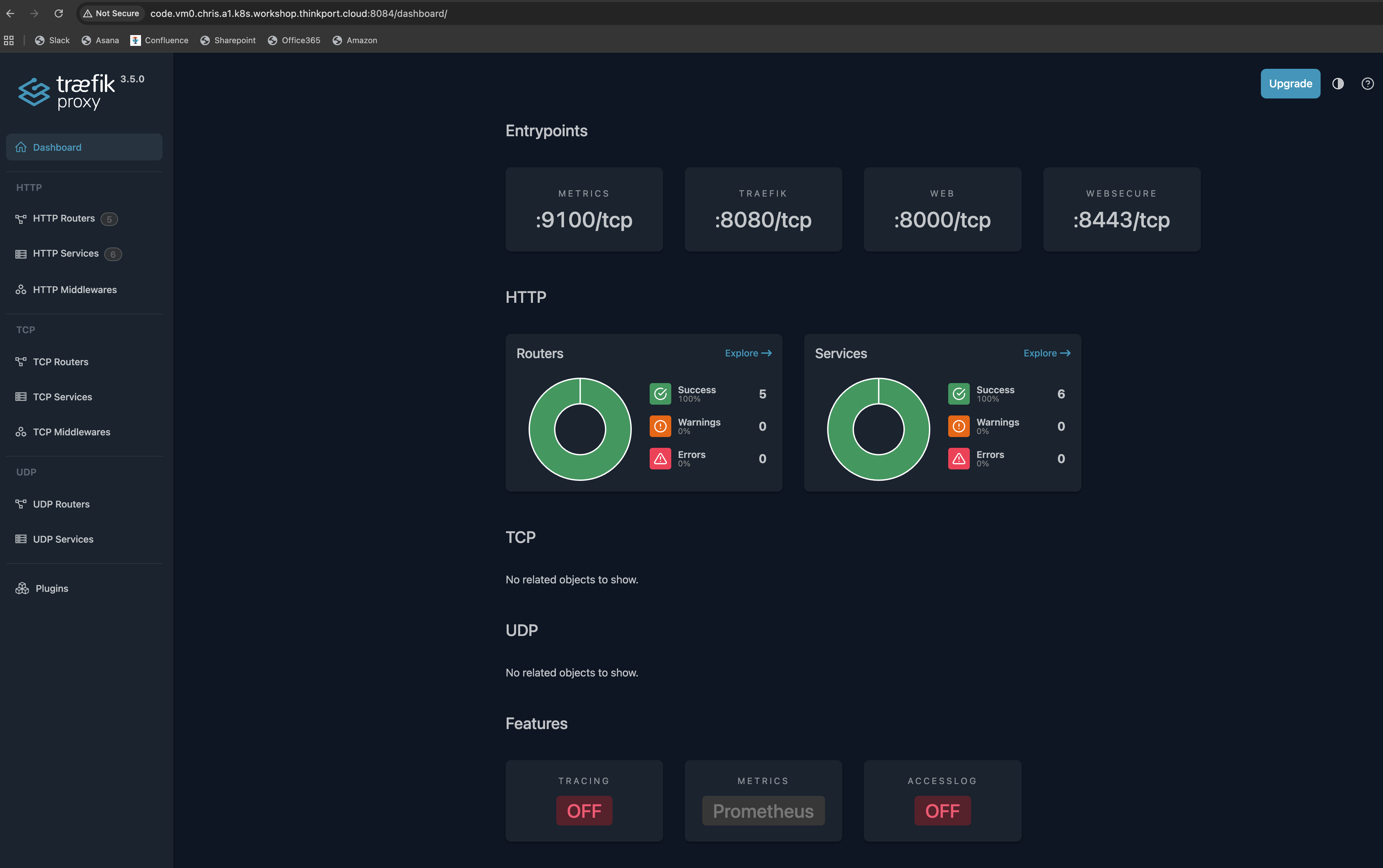
We can see that the kubernetes-ingress, kubernetes-gateway and traefik-crd options are set on Traefik as we wanted. Furthermore, we can recognize that Traefik has four defined entry points: web, websecure, traefik, and metrics. While two of them are obvious, the traefik and metrics entry points are special. The traefik entry point is used for the dashboard and api requests, while the metrics entry point is used for Prometheus metrics.
Then check if a new IngressClass is available and which is configured as default.
Solution
kubectl get ingressclasses
nginx     k8s.io/ingress-nginx            <none>       7d8h
traefik   traefik.io/ingress-controller   <none>       26h
Which one is the default class? The easy way is to look at the annotation ingressclass.kubernetes.io/is-default-class. Let’s have another cool example with kubectl and jq:
kubectl get ingressclasses -o json | jq '.items[] | {name: .metadata.name, defaultClass: .metadata.annotations["ingressclass.kubernetes.io/is-default-class"]}'
{
"name": "nginx",
"defaultClass": "true"
}
{
"name": "traefik",
"defaultClass": "false"
}
Forward the dashboard
So what about the mystic dashboard, we have enabled in the values.yaml?
As we have noticed, the Traefik CRD option is enabled. By default the Dashboard is configured by Traefiks own CRD for ingresses. Check the ingressroutes.traefik.io CRD!
Solution
k describe ingressroutes.traefik.io -n traefik-ingress

Name:         traefik-dashboard
Namespace:    traefik-ingress
Labels:       app.kubernetes.io/instance=traefik-traefik-ingress
            app.kubernetes.io/managed-by=Helm
            app.kubernetes.io/name=traefik
            helm.sh/chart=traefik-37.0.0
Annotations:  meta.helm.sh/release-name: traefik
            meta.helm.sh/release-namespace: traefik-ingress
API Version:  traefik.io/v1alpha1
Kind:         IngressRoute
Metadata:
Creation Timestamp:  2025-08-11T17:27:43Z
Generation:          1
Resource Version:    2272990
UID:                 3eccd872-de37-45f0-af05-7753cb734d25
Spec:
Entry Points:
    traefik
Routes:
    Kind:   Rule
    Match:  PathPrefix(`/dashboard`) || PathPrefix(`/api`)
    Services:
    Kind:  TraefikService
    Name:  api@internal
Events:      <none>
IngressRoute resource, we can easily understand, that the /dashboard path is exposed only on the traefik entry point. Of course it has no kubernetes backend service, because it is an internal feature of Traefik (api@internal).
Okay, now we try to take first look on the dashboard.
Tip
Normally, the dashboard is not exposed to an external endpoint. For now we will use kubectl port-forward to take a look on the dashboard. As we can not use a browser on our code VM, we will forward the port to a public one you can access in the browser (ports 8083-8090 of your VM are public reachable). This is highly discouraged and insecure!
Build a kubectl port-forward command that forwards the port of the traefik entry point of the Traefik deployment to port 8084 on your VM. You have to use --address 0.0.0.0 in the command to be able to open the dashboard in your browser. Execute the command in a separate bash shell in your Code IDE (you can click on the + sign in the upper right corner of the terminal block).
If everything works well, you can open the dashboard at http://code.vm0.<cluster>.<workhop-id>.k8s.workshop.thinkport.cloud:8084/dashboard/. The trailing “/” is important!
Solution
At first, we will take a look at the help page:
k port-forward --help
Forward one or more local ports to a pod.

Use resource type/name such as deployment/mydeployment to select a pod. Resource type defaults to 'pod' if omitted.

If there are multiple pods matching the criteria, a pod will be selected automatically. The forwarding session ends
when the selected pod terminates, and a rerun of the command is needed to resume forwarding.

Examples:
# Listen on ports 5000 and 6000 locally, forwarding data to/from ports 5000 and 6000 in the pod
kubectl port-forward pod/mypod 5000 6000

# Listen on ports 5000 and 6000 locally, forwarding data to/from ports 5000 and 6000 in a pod selected by the
deployment
kubectl port-forward deployment/mydeployment 5000 6000

# Listen on port 8443 locally, forwarding to the targetPort of the service's port named "https" in a pod selected by
the service
kubectl port-forward service/myservice 8443:https

# Listen on port 8888 locally, forwarding to 5000 in the pod
kubectl port-forward pod/mypod 8888:5000

# Listen on port 8888 on all addresses, forwarding to 5000 in the pod
kubectl port-forward --address 0.0.0.0 pod/mypod 8888:5000

# Listen on port 8888 on localhost and selected IP, forwarding to 5000 in the pod
kubectl port-forward --address localhost,10.19.21.23 pod/mypod 8888:5000

# Listen on a random port locally, forwarding to 5000 in the pod
kubectl port-forward pod/mypod :5000
kubectl port-forward -n traefik-ingress deployments/traefik --address 0.0.0.0 8084:8080
And open the dashboard in the browser…
Check the Gateway-API configuration
Finally we will check the Gateway API resources. Traefik should have created a Gateway and a GatewayClass. Compared to the Ingress API, the Gateway API is more modular. It allows to define Classes of Gateways which can be instanziated more than once. Furhtermore, the Gateways are namespaced. So you can deploy multiple Gateways for e.g. different teams, network zones etc. This makes it easier to manage a Cluster with multi-tenancy. Also, a common scenario is the deployment of multiple ingress instances for internal and external traffic.
Solution
We will discuss this solution together!
k get gatewayclasses -o yaml
apiVersion: v1
items:
- apiVersion: gateway.networking.k8s.io/v1
kind: GatewayClass
metadata:
    annotations:
    meta.helm.sh/release-name: traefik
    meta.helm.sh/release-namespace: traefik-ingress
    creationTimestamp: "2025-08-11T17:27:43Z"
    generation: 1
    labels:
    app.kubernetes.io/instance: traefik-traefik-ingress
    app.kubernetes.io/managed-by: Helm
    app.kubernetes.io/name: traefik
    helm.sh/chart: traefik-37.0.0
    name: traefik
    resourceVersion: "2273011"
    uid: f433935a-e27b-495c-90ca-448d6c1e1529
spec:
    controllerName: traefik.io/gateway-controller
status:
    conditions:
    - lastTransitionTime: "2025-08-11T17:27:44Z"
    message: Handled by Traefik controller
    observedGeneration: 1
    reason: Handled
    status: "True"
    type: Accepted
kind: List
metadata:
resourceVersion: ""
k get gateways -o yaml -n traefik-ingress
apiVersion: v1
items:
- apiVersion: gateway.networking.k8s.io/v1
kind: Gateway
metadata:
    annotations:
    meta.helm.sh/release-name: traefik
    meta.helm.sh/release-namespace: traefik-ingress
    creationTimestamp: "2025-08-11T17:27:43Z"
    generation: 2
    labels:
    app.kubernetes.io/instance: traefik-traefik-ingress
    app.kubernetes.io/managed-by: Helm
    app.kubernetes.io/name: traefik
    helm.sh/chart: traefik-37.0.0
    name: traefik-gateway
    namespace: traefik-ingress
    resourceVersion: "2282293"
    uid: e5ea5e49-9e0f-4e6c-9e21-73a73c901ed7
spec:
    gatewayClassName: traefik
    listeners:
    - allowedRoutes:
        namespaces:
        from: Same
    name: web
    port: 8000
    protocol: HTTP
    - allowedRoutes:
        namespaces:
        from: Same
    hostname: traefik.chris.a1.k8s.workshop.thinkport.cloud
    name: websecure
    port: 8443
    protocol: HTTPS
    tls:
        certificateRefs:
        - group: ""
        kind: Secret
        name: tls-cert
        namespace: traefik-ingress
        mode: Terminate
status:
    addresses:
    - type: IPAddress
    value: 20.13.193.54
    conditions:
    - lastTransitionTime: "2025-08-11T17:57:37Z"
    message: Gateway successfully scheduled
    observedGeneration: 2
    reason: Accepted
    status: "True"
    type: Accepted
    - lastTransitionTime: "2025-08-11T17:57:37Z"
    message: Gateway successfully scheduled
    observedGeneration: 2
    reason: Programmed
    status: "True"
    type: Programmed
    listeners:
    - attachedRoutes: 0
    conditions:
    - lastTransitionTime: "2025-08-11T17:57:37Z"
        message: No error found
        observedGeneration: 2
        reason: Accepted
        status: "True"
        type: Accepted
    - lastTransitionTime: "2025-08-11T17:57:37Z"
        message: No error found
        observedGeneration: 2
        reason: ResolvedRefs
        status: "True"
        type: ResolvedRefs
    - lastTransitionTime: "2025-08-11T17:57:37Z"
        message: No error found
        observedGeneration: 2
        reason: Programmed
        status: "True"
        type: Programmed
    name: web
    supportedKinds:
    - group: gateway.networking.k8s.io
        kind: HTTPRoute
    - group: gateway.networking.k8s.io
        kind: GRPCRoute
    - attachedRoutes: 0
    conditions:
    - lastTransitionTime: "2025-08-11T17:57:37Z"
        message: No error found
        observedGeneration: 2
        reason: Accepted
        status: "True"
        type: Accepted
    - lastTransitionTime: "2025-08-11T17:57:37Z"
        message: No error found
        observedGeneration: 2
        reason: ResolvedRefs
        status: "True"
        type: ResolvedRefs
    - lastTransitionTime: "2025-08-11T17:57:37Z"
        message: No error found
        observedGeneration: 2
        reason: Programmed
        status: "True"
        type: Programmed
    name: websecure
    supportedKinds:
    - group: gateway.networking.k8s.io
        kind: HTTPRoute
    - group: gateway.networking.k8s.io
        kind: GRPCRoute
kind: List
metadata:
resourceVersion: ""
2. Moving the guestbook from Nginx to Traefik
In this chapter we want to change the Ingress controller of our existing Ingress resource of our guestbook from Nginx to Traefik. We will not use the Gateway API at the moment.
Our existing Ingress resource should look like this:
Solution
k get -n guestbook-ingress ingress ingress-resource -o yaml
apiVersion: networking.k8s.io/v1
kind: Ingress
metadata:
annotations:
    kubectl.kubernetes.io/last-applied-configuration: |
    {"apiVersion":"networking.k8s.io/v1","kind":"Ingress","metadata":{"annotations":{},"name":"ingress-resource","namespace":"guestbook-ingress"},"spec":{"rules":[{"host":"guestbook.chris.a1.k8s.workshop.thinkport.cloud","http":{"paths":[{"backend":{"service":{"name":"guestbook-svc-cip","port":{"number":80}}},"path":"/","pathType":"Prefix"}]}}]}}
creationTimestamp: "2025-08-11T16:17:33Z"
generation: 4
name: ingress-resource
namespace: guestbook-ingress
resourceVersion: "2779341"
uid: d0d46eb1-6f68-4382-b626-e47766a1057d
spec:
ingressClassName: nginx
rules:
- host: guestbook.chris.a1.k8s.workshop.thinkport.cloud
    http:
    paths:
    - backend:
        service:
            name: guestbook-svc-cip
            port:
            number: 80
        path: /
        pathType: Prefix
status:
loadBalancer:
    ingress:
    - ip: 4.207.111.50
We can see that nginx is configured as ingressClassName. Also in the status, we can see that the ingress is using the external IP of the nginx load-balancer.
Now, change edit the resource (re-applying or by kubectl edit) to use Traefik! Think about how you could check that the resource is handled by Traefik now.
Solution
The resulting Ingress just changes the ingressClassName: nginx to ingressClassName: traefik.
apiVersion: networking.k8s.io/v1
kind: Ingress
metadata:
annotations:
    kubectl.kubernetes.io/last-applied-configuration: |
    {"apiVersion":"networking.k8s.io/v1","kind":"Ingress","metadata":{"annotations":{},"name":"ingress-resource","namespace":"guestbook-ingress"},"spec":{"rules":[{"host":"guestbook.chris.a1.k8s.workshop.thinkport.cloud","http":{"paths":[{"backend":{"service":{"name":"guestbook-svc-cip","port":{"number":80}}},"path":"/","pathType":"Prefix"}]}}]}}
creationTimestamp: "2025-08-11T16:17:33Z"
generation: 5
name: ingress-resource
namespace: guestbook-ingress
resourceVersion: "2785409"
uid: d0d46eb1-6f68-4382-b626-e47766a1057d
spec:
ingressClassName: traefik
rules:
- host: guestbook.chris.a1.k8s.workshop.thinkport.cloud
    http:
    paths:
    - backend:
        service:
            name: guestbook-svc-cip
            port:
            number: 80
        path: /
        pathType: Prefix
status:
loadBalancer:
    ingress:
    - ip: 20.13.193.54
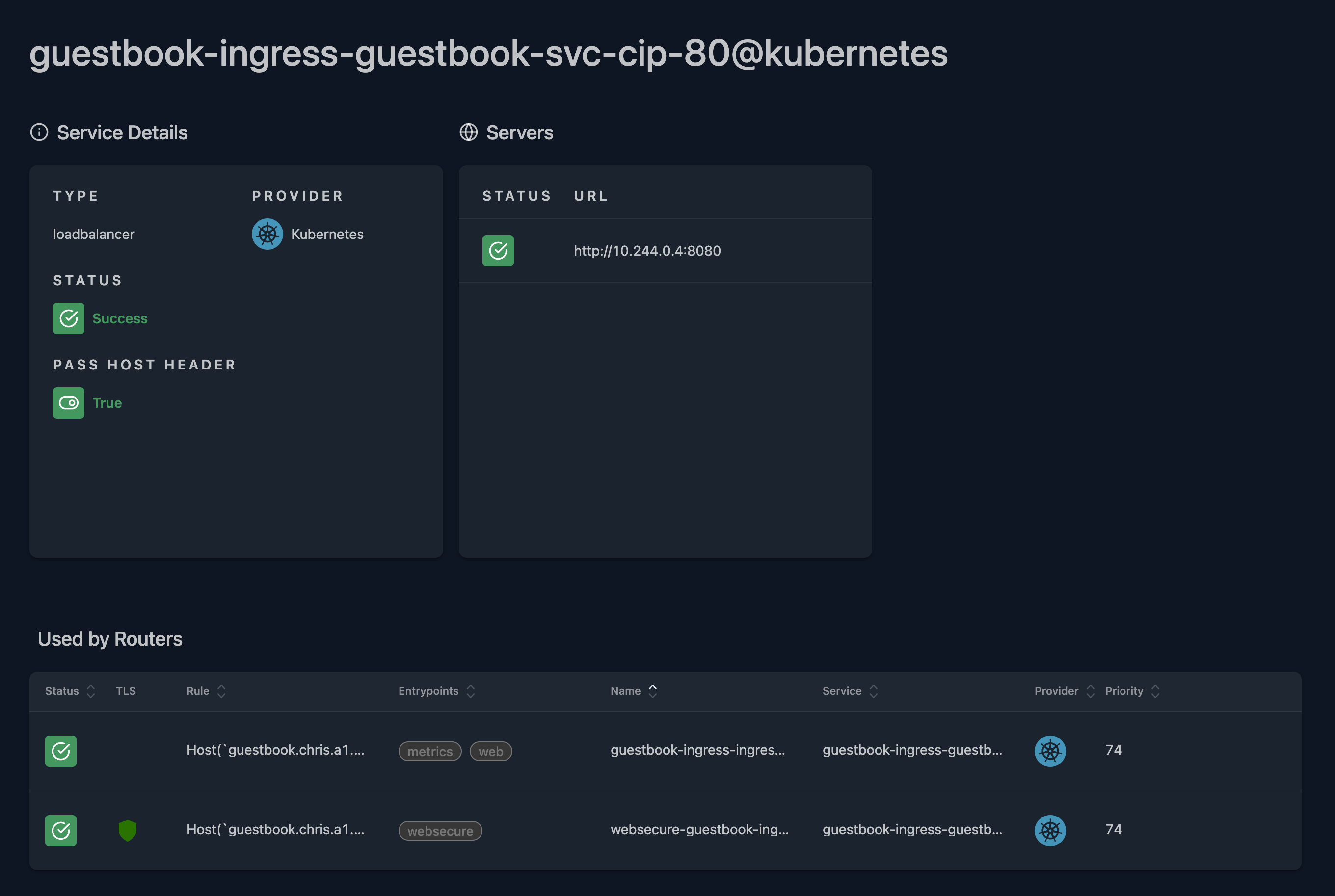
- We can check the status of the
Ingress, does the loadBalancer ip change? It was changed and matches the traefik lb service!status: loadBalancer: ingress: - ip: 20.13.193.54k get svc -n traefik-ingress NAME TYPE CLUSTER-IP EXTERNAL-IP PORT(S) AGE traefik LoadBalancer 10.0.141.232 20.13.193.54 80:30243/TCP,443:30714/TCP 27h - We can check if the external DNS controller updates the DNS entry.
k logs -n ingress deployments/external-dns ... time="2025-08-12T21:01:02Z" level=info msg="Updating A record named 'guestbook.chris.a1' to '20.13.193.54' for Azure DNS zone 'k8s.workshop.thinkport.cloud'." time="2025-08-12T21:01:03Z" level=info msg="Updating TXT record named 'a-guestbook.chris.a1' to '\"heritage=external-dns,external-dns/owner=chris.a1.k8s.workshop.thinkport.cloud,external-dns/resource=ingress/guestbook-ingress/ingress-resource\"' for Azure DNS zone 'k8s.workshop.thinkport.cloud'." ... - We can check the logs of the traefik deployment.
k logs -n traefik-ingress deployments/traefik 2025-08-12T21:00:49Z INF Updated ingress status ingress=ingress-resource namespace=guestbook-ingress - And the easiest one: We can check our fancy dashboard!
3. Migrating from Ingress to the Gateway API
Creating the HttpRoute
In this chapter we will delete the existing Ingress of our guestbook app and replace it by a HttpRoute resource of the Gateway API. Take your exisiting Ingress resource and try to convert it into a HttpRoute resource by using the documentation of the Gateway API and Treafik.
Solution
apiVersion: gateway.networking.k8s.io/v1
kind: HTTPRoute
metadata:
  name: guestbook-http
  namespace: guestbook-ingress
spec:
  hostnames:
    - guestbook.chris.a1.k8s.workshop.thinkport.cloud
  parentRefs:
    - group: gateway.networking.k8s.io
      kind: Gateway
      name: traefik-gateway
      namespace: traefik-ingress
  rules:
    - backendRefs:
        - name: guestbook-svc-cip
          port: 80
Tip
Here we want to share some remarks of the deployed solution.
The Gateway API has a more fine-grained RBAC and security concept. You can e.g. limit a Gateway to only read Routes from certain namespace.
This is very useful when there is a team maintaining the Routes. When doing this, teams providing the services have to create a ReferenceGrant - meaning they give their consent to the Gateway to read their services, pods etc. On the other hand, it can be configured with great freedom (like we did in this demo).
Adding authentication
Next, we want to add basic auth as simple authentication mechanism to our guestbook. Of course it makes only litte sense to protect a guestbook with basic auth, but it’s just an example and we will have a more elaborated demo later.
Basically spoken, we want the reverse Proxy (Traefik) to handle the auth mechanism, as we do not want or can implement it in our guestbook application. Often such Middleware solutions can be practical for legacy applications, testing or security hardening.
Both, Traefik and the Gateway API know this conecpt: In Traefik it is called Middleware, in the Gateway API Filter. And now comes the great part: We can use the Middlewares directly as a Filter in the Gateway API.
So first we will read the documentation of the Basic Auth Middleware.
Tip
For this simple demo, we will use a Kubernetes Secret of type BasicAuth to store the credentials. This is not recommended for production use-cases.
Create the necessary objects for the Middleware in the namespace where your guestbook is deployed (guestbook-ingress).
Check if Traefik recognized the Middleware in the dashboard.
Solution
First we will create the secret containing the credentials.
apiVersion: v1
kind: Secret
metadata:
  name: secret-basic-auth
  namespace: guestbook-ingress
type: kubernetes.io/basic-auth
stringData:
  username: admin # required field for kubernetes.io/basic-auth
  password: t0p-Secret # required field for kubernetes.io/basic-auth
Middleware.
apiVersion: traefik.io/v1alpha1
kind: Middleware
metadata:
  name: guestbook-auth
  namespace: guestbook-ingress
spec:
  basicAuth:
    secret: secret-basic-auth
And check the dashboard.
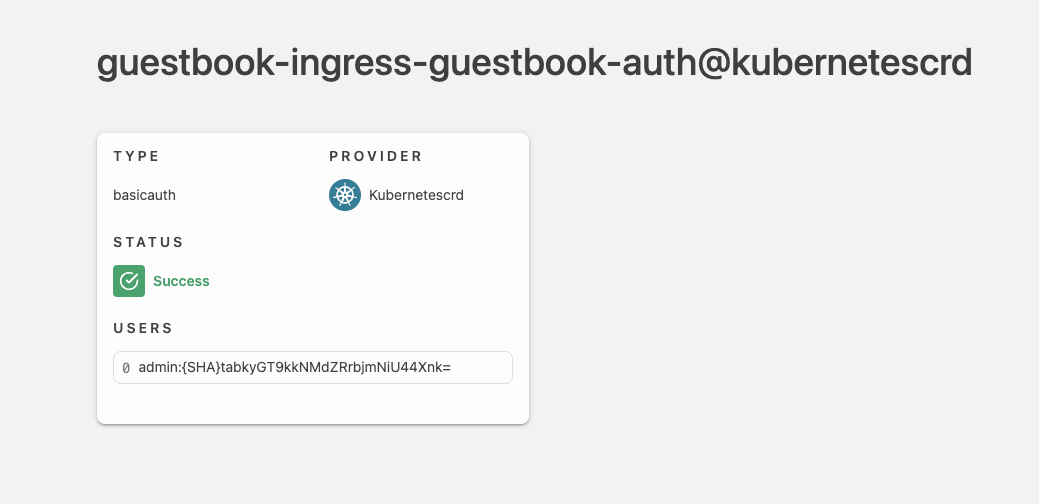
Now, we need to reference the created Middleware in our HttpRoute definition. Read the documentation and try to reference your basic auth Middleware.
Solution
We just need to add the following filter in our HttpRoute definition.
apiVersion: gateway.networking.k8s.io/v1
kind: HTTPRoute
metadata:
  name: guestbook-http
  namespace: guestbook-ingress
spec:
  hostnames:
    - guestbook.chris.a1.k8s.workshop.thinkport.cloud
  parentRefs:
    - group: gateway.networking.k8s.io
      kind: Gateway
      name: traefik-gateway
      namespace: traefik-ingress
  rules:
    - backendRefs:
        - name: guestbook-svc-cip
          port: 80
      filters:
        - type: ExtensionRef
          extensionRef:
            group: traefik.io
            kind: Middleware
            name: guestbook-auth
You’ve done it! Check if the username and password are correctly enforced by opening the guestbook. Also check the Traefik dashboard.
4. Demonstration with WAF Middleware
Your trainer will demonstrate a more useful use case with a Web Application Firewall (WAF). When deploying a web application, it’s essential to protect it against evil Hackers and Scriptkiddies. We will use the Coraza WAF as Traefik Middleware implemented as a Filter.
Demo
First we need to add the necessary configuration to your values file (to install the plugin into the Traefik container).
#Enable the dashboard
ingressRoute:
  dashboard:
    enabled: true

#Enable all providers
providers:
  kubernetesGateway:
    enabled: true
  kubernetesCRD:
    enabled: true
  kubernetesIngress:
    enabled: true
ingressClass:
  enabled: true
  isDefaultClass: false
gateway:
  listeners:
    web:
      namespacePolicy:
        from: All
# Enable ssl on Gateway-API
    websecure:
      port: 8443
      protocol: HTTPS
      certificateRefs:
        [
          {
            kind: Secret,
            name: tls-cert,
            namespace: traefik-ingress
          }
        ]
      namespacePolicy:
        from: All
# Set our cert as default cert for traefik
tlsStore:
  default:
    defaultCertificate:
      secretName: tls-cert
#Expose Traefik as Load-Balancer
service:
  type: LoadBalancer
#Enable Access Log
logs:
  access:
    enabled: true
#Enable WAF in Traefik Setup
experimental:
  plugins:
    coraza-http-wasm-traefik:
      moduleName: "github.com/jcchavezs/coraza-http-wasm-traefik"
      version: "v0.3.0"
Demo
Next, we will create the Middleware loading the OWASP default rules.
apiVersion: traefik.io/v1alpha1
kind: Middleware
metadata:
  name: coraza-demo
  namespace: guestbook-ingress
spec:
  plugin:
    coraza-http-wasm-traefik:
      crsEnabled: true
      directives:
        - 'SecRuleEngine On'
        - 'SecDebugLog /dev/stdout'
        - 'SecDebugLogLevel 9'

        # Demo 1
        - 'SecRule REQUEST_URI "@rx ^/list(?:/|$)" "id:1000001,phase:1,deny,log,status:403,msg:''Demo: /list blocked due to query marker'',chain"'
        - 'SecRule QUERY_STRING "@contains hack" "t:none"'

        - 'Include @crs-setup.conf.example'
        - 'Include @owasp_crs/**.conf'
Demo
Finally, we will add the Filter to our guestbook deployment.
apiVersion: gateway.networking.k8s.io/v1
kind: HTTPRoute
metadata:
  name: guestbook-http
  namespace: guestbook-ingress
spec:
  hostnames:
    - guestbook.chris.a1.k8s.workshop.thinkport.cloud
  parentRefs:
    - group: gateway.networking.k8s.io
      kind: Gateway
      name: traefik-gateway
      namespace: traefik-ingress
  rules:
    - backendRefs:
        - name: guestbook-svc-cip
          port: 80
      filters:
        - type: ExtensionRef
          extensionRef:
            group: traefik.io
            kind: Middleware
            name: coraza-demo
Let’s simulate a nasty call to our guestbook service by adding a ?hack to the list page.
End of Lab